
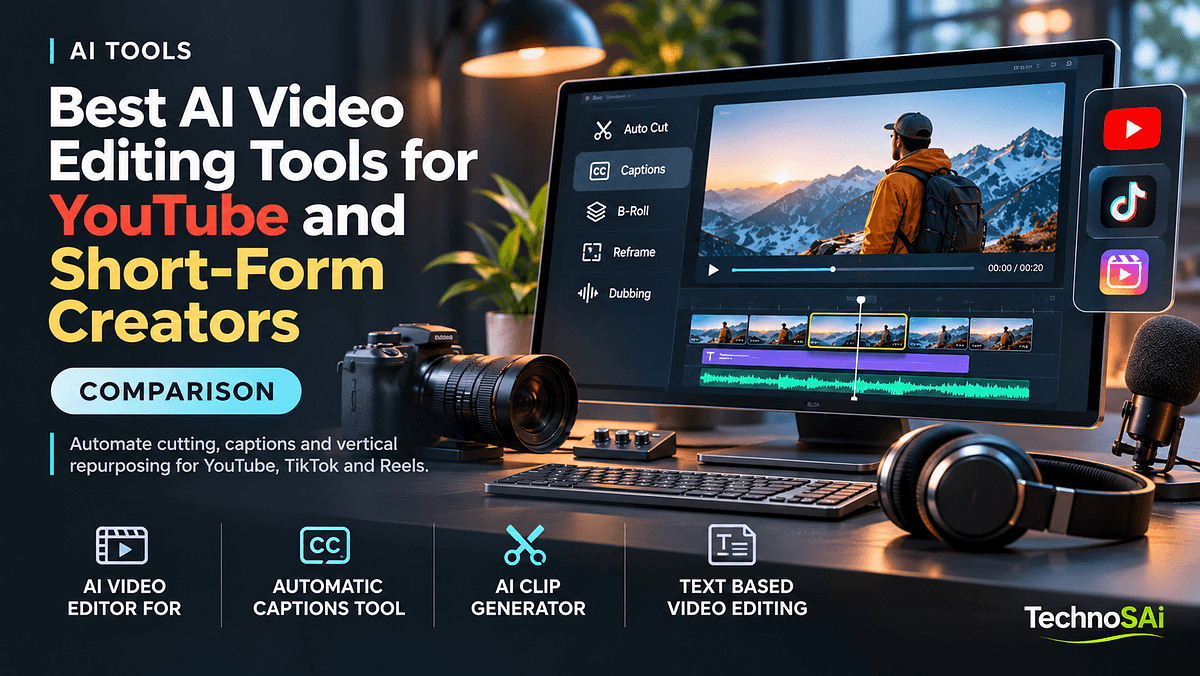
Editing is where most creators lose their week. Cutting dead air, adding captions, finding B-roll and reformatting a horizontal video into vertical clips can take longer than recording the content itself. Modern ai video editing tools automate most of that drudgery, and the best ones now handle entire workflows from raw footage to platform-ready Shorts, TikToks and Reels. This guide compares the main categories of tools, explains how their pricing and export quality differ, and identifies which workflow realistically saves solo creators the most hours.
Rather than ranking dozens of apps, it is more useful to understand the four categories of AI editing and which problem each one solves.
Category 1: Text-Based Video Editing
Text based video editing transformed how talking-head creators work. The tool transcribes your footage, and you edit the video by editing the transcript. Delete a sentence in the text and the corresponding clip disappears from the timeline.
Descript is the best-known example and remains the reference product in this category. It combines transcript editing with filler word removal, studio sound enhancement, eye contact correction and an AI assistant that can apply edits from natural language instructions. Adobe Premiere Pro also includes text-based editing, which is valuable if you already work in the Adobe ecosystem and need professional color and audio tools.
Best for: podcasters, educators and commentary creators whose videos are primarily dialogue.
Example workflow: record a 40-minute tutorial, remove filler words and long pauses automatically, delete tangents by highlighting text, then export. A rough cut that once took two hours can often be done in twenty minutes.
Category 2: Automatic Captions Tools
Captions are no longer optional. Many viewers watch short-form video without sound, and styled captions measurably improve retention. An automatic captions tool transcribes speech, syncs words to the timeline and applies animated styles such as word-by-word highlighting.
Submagic and Captions are popular dedicated options, while CapCut provides strong auto-captions inside a full mobile and desktop editor. Most ai video editor for youtube suites now include captioning, so dedicated tools are mainly worth it when you want trend-driven styles, emoji insertion and automatic zoom effects.
Accuracy considerations: always review captions for names, technical terms and brand names. A custom vocabulary feature, where available, saves repeated corrections.
Category 3: AI Clip Generators
An ai clip generator analyzes a long video, identifies moments likely to perform well, and outputs vertical clips with reframing, captions and hooks. This is the fastest way to repurpose long videos into shorts.
OpusClip is the best-known tool here, scoring clips for virality potential and auto-reframing speakers. Vizard, Klap and similar tools offer comparable features, and both Descript and CapCut have added clipping capabilities. YouTube itself has also introduced AI features that suggest Shorts from long-form uploads.
How to get good results:
- Feed the tool videos with clear, self-contained segments. Rambling content produces weak clips.
- Review the top-scored clips rather than trusting the score blindly. The models favor high energy, which is not always your best insight.
- Edit the hook. The first two seconds decide performance, so rewrite the opening caption or trim to a stronger first sentence.
Category 4: AI Dubbing and Enhancement
AI dubbing translates your voice into other languages while preserving its character, sometimes with lip-sync adjustment. ElevenLabs, HeyGen and YouTube's own auto-dubbing features let creators reach new audiences without re-recording. Enhancement tools cover noise removal, voice isolation, auto-color and upscaling.
Dubbing is most valuable for evergreen educational content where language, not personality, is the barrier. For humor or highly personal content, check results with native speakers before publishing.
Pricing Models Explained
Pricing varies more than features do, and the differences matter for budget planning:
- Subscription with transcription limits. Text-based editors usually cap transcription hours per month on each tier.
- Credit or minute-based billing. Clip generators often charge by input minutes processed, so repurposing a two-hour podcast weekly can push you into higher tiers.
- Freemium with watermarks. Free plans commonly add watermarks, restrict resolution to 720p or limit exports.
- Per-language dubbing fees. Dubbing is typically charged by output minutes.
Check export quality before committing. Some tools export at 1080p only on paid plans, and 4K support is uneven. For YouTube long-form, confirm the bitrate and codec options; for Shorts, 1080 by 1920 at 30 or 60 frames per second is usually sufficient.
Which Workflow Saves Solo Creators the Most Time
After testing these categories together, one stack consistently delivers the biggest weekly savings for a solo creator publishing one long video and several Shorts:
- Step 1: Edit the long-form video in a text-based editor, removing filler words and silence automatically.
- Step 2: Run the final export through an AI clip generator to produce five to ten vertical candidates.
- Step 3: Pick the best three, refine hooks, and apply consistent caption styling.
- Step 4: Optionally dub your best-performing evergreen videos into one or two additional languages.
This workflow can reduce a typical ten-hour editing week to around three or four hours, depending on footage quality and how much creative polish you add. The biggest gains come from silence removal and automated clipping, not from generative effects.
Benefits and Considerations
The benefits are clear: faster turnaround, more consistent output, and the ability to maintain a presence across YouTube, TikTok and Instagram without hiring an editor.
There are trade-offs, though:
- Sameness. Default caption styles and clip formats are everywhere. Customize fonts, colors and pacing so your content remains recognizable.
- Over-cutting. Aggressive silence removal can make speech feel breathless. Keep a small pause threshold.
- Data and rights. Review terms on how uploaded footage may be used, especially for client work.
- Cost creep. Stacking three subscriptions adds up. Consolidate once you know which features you actually use.
Frequently Asked Questions
Which AI video editor is best for YouTube beginners? A text-based editor such as Descript is usually the easiest starting point, because editing a transcript feels like editing a document and removes the need to learn a complex timeline first.
Can AI clip generators replace a human editor for Shorts? They handle the first pass well, finding candidate moments, reframing and captioning. A human still adds the most value by choosing the strongest clips and rewriting hooks.
Do AI editing tools reduce video quality? Not inherently, but free plans often limit export resolution or add watermarks. Check export settings and plan limits before committing to a workflow.
Conclusion
The best ai video editing tools do not replace creative judgment; they remove repetitive labor so you can spend time on ideas and storytelling. Text-based editors handle long-form cleanup, automatic captions improve retention, AI clip generators turn one video into a week of Shorts, and dubbing opens new markets.
Key takeaways: start with a text-based editor and a clip generator, review every AI decision on hooks and captions, and measure hours saved before adding more tools. Your next step is to take last week's video, run it through this workflow, and compare the time spent against your current process.