
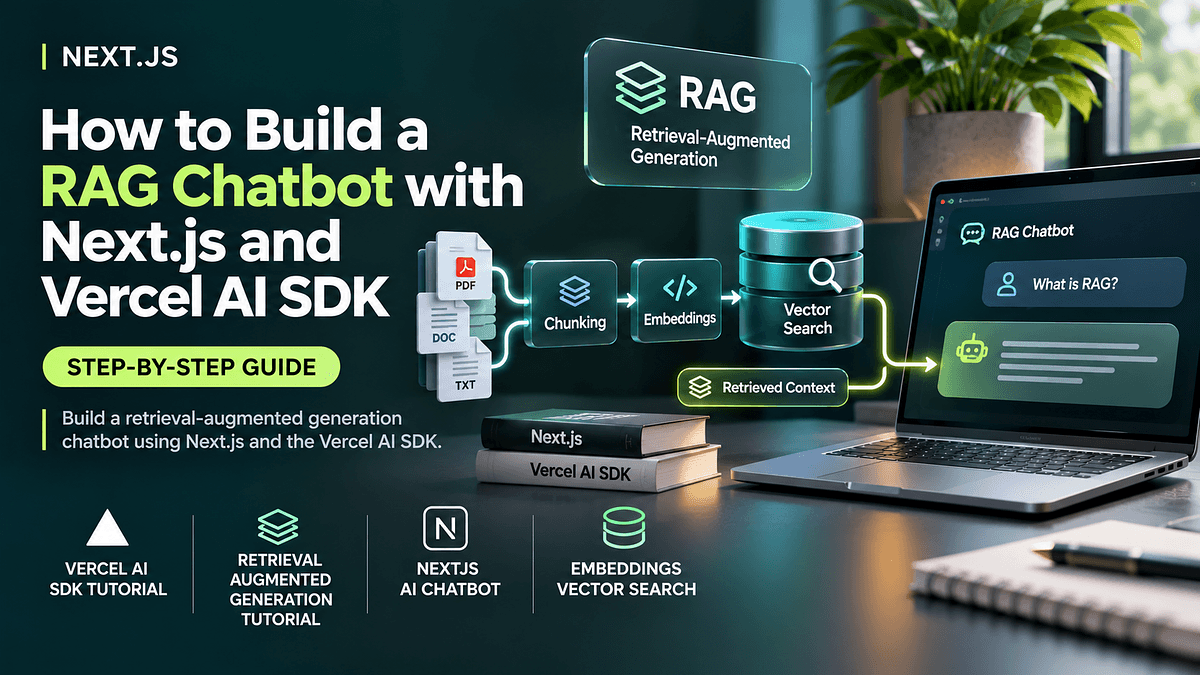
Chatbots that answer from general knowledge are easy to build. Chatbots that answer accurately from your own documents, such as product manuals, policies or knowledge bases, require retrieval augmented generation. In this tutorial, you will build a rag chatbot nextjs application step by step using the Vercel AI SDK, embeddings and vector search. By the end, you will have a working chat interface that lets users chat with your documents, with streaming responses and source-grounded answers.
Before writing code, it helps to understand what you are building.
How RAG Works in Simple Terms
Retrieval augmented generation has two phases:
Indexing: you split your documents into small chunks, convert each chunk into an embedding, which is a list of numbers representing its meaning, and store those embeddings in a database.
Answering: when a user asks a question, you convert the question into an embedding, find the most similar chunks in the database, and send those chunks to the language model along with the question. The model answers using that retrieved context.
This approach keeps answers grounded in your content and lets you update knowledge by re-indexing documents rather than retraining a model.
What You Need
Node.js 20 or later installed.
An API key for a model provider supported by the AI SDK, such as OpenAI, Anthropic or Google.
A PostgreSQL database with the pgvector extension, for example from Supabase, Neon or a local Docker container.
Basic familiarity with React and TypeScript.
Step 1: Create the Next.js Project
Open a terminal and run npx create-next-app@latest rag-chatbot, choosing TypeScript, Tailwind CSS and the App Router when prompted. Move into the folder with cd rag-chatbot.
Install the dependencies: run npm install ai followed by the provider package for your model, such as @ai-sdk/openai, then the React helpers package @ai-sdk/react, plus drizzle-orm, postgres and zod for database access and validation.
Visual description: your project folder now contains an app directory with a page file, a package file listing your dependencies and a public folder for assets.
Step 2: Configure Environment Variables
Create a file named .env.local in the project root. Add your provider API key and your database connection string. Never commit this file to version control; Next.js includes it in the default ignore list.
Step 3: Set Up the Vector Table
In your database, enable pgvector by running the SQL command create extension vector. Then create a table for document chunks with columns for an id, the chunk content as text, the source document name and an embedding column of type vector with the dimension matching your embedding model, for example 1536 dimensions for many OpenAI embedding models.
Add an HNSW index on the embedding column using cosine distance. This makes similarity searches fast even with many chunks.
Step 4: Write the Indexing Script
Create a script that does the following:
Reads your documents, such as markdown or text files in a docs folder.
Splits each document into chunks of roughly 500 to 1,000 characters, ideally at paragraph boundaries, with a small overlap so ideas are not cut in half.
Calls the AI SDK's embedMany function with your embedding model to create embeddings for all chunks.
Inserts each chunk, its source and its embedding into the table.
Run the script once. When it finishes, query the table to confirm rows exist.
Embeddings vector search quality depends heavily on chunking. Chunks that are too large dilute meaning; chunks that are too small lose context. Start with paragraph-based chunks and adjust later.
Step 5: Create a Retrieval Function
Create a function called findRelevantContent that takes the user's question, creates its embedding with the AI SDK's embed function, and runs a SQL query ordering chunks by cosine distance to the question embedding, returning the top five results with their sources.
Add a similarity threshold so irrelevant chunks are excluded when nothing in your documents matches the question.
Step 6: Build the Chat API Route
Create a route handler at app/api/chat/route.ts. Inside the POST function:
Read the messages from the request body.
Call the AI SDK's streamText function with your chat model, a system prompt and the messages.
Define a tool named getInformation with a zod schema accepting a question string. Its execute function calls findRelevantContent and returns the matching chunks.
Return the streaming response using the SDK's helper for UI message streams.
Your system prompt should say: Answer questions using only information returned by the getInformation tool. Always call the tool before answering. If the tool returns no relevant information, say you do not know. Cite the source document names in your answer.
Using retrieval as a tool lets the model decide when to search and allows multiple searches for complex questions. Allow multiple steps so the model can call the tool and then generate its answer.
Step 7: Build the Chat Interface
In your page component, use the useChat hook from @ai-sdk/react. It manages messages, input state and streaming automatically.
Render the list of messages, showing user messages on the right and assistant messages on the left. Add an input box and a send button at the bottom.
Visual description: a clean chat window with alternating message bubbles, a text field at the bottom and responses that appear word by word as they stream in.
Optionally, display tool activity, such as a small Searching documents indicator when the retrieval tool runs, which reassures users that answers are grounded.
Step 8: Test Your Chatbot
Run npm run dev and open the local address shown in your terminal. Ask questions you know are answered in your documents, then ask one that is not covered. A well-built nextjs ai chatbot should answer the first type with citations and politely decline the second.
Troubleshooting Common Issues
Embedding dimension mismatch error: the vector column dimension must match your embedding model. Recreate the column with the correct dimension.
Irrelevant answers: inspect retrieved chunks by logging them. Improve chunking, increase the number of results or add hybrid keyword search.
The model answers without searching: strengthen the system prompt and ensure the tool description clearly explains when to use it.
Slow responses: confirm the HNSW index exists and reduce the number of chunks sent to the model.
Environment variables undefined: restart the development server after editing .env.local.
Improving Your RAG Chatbot
Add hybrid search combining keyword and vector matching for exact terms.
Add a reranking step to reorder retrieved chunks by relevance.
Store metadata such as document sections and dates for filtering.
Add authentication so users only retrieve documents they are allowed to see.
Build an evaluation set of questions to measure answer quality as you make changes.
Frequently Asked Questions
Can I use a different vector database? Yes. Pinecone, Qdrant, Weaviate and others work; only the retrieval function changes.
Which model should I use? Start with a fast, affordable model for chat. Use a stronger model if answers require complex reasoning.
Conclusion
You have built a retrieval augmented generation chatbot with Next.js and the Vercel AI SDK: indexing documents as embeddings in PostgreSQL with pgvector, retrieving relevant chunks through a tool, and streaming grounded answers into a chat interface.
Key takeaways: chunk documents thoughtfully, use retrieval as a tool, instruct the model to answer only from retrieved content, cite sources and evaluate with real questions. Next, add hybrid search and an evaluation set to improve accuracy as your document collection grows.